
How to run an incident in Command Post
From starting an incident to a signed action plan, and how the app is looked after.
Before you start
Command Post runs in a web browser, on a computer, tablet or phone. Nothing is installed.
- No account is needed. An incident opens from its link, and the person who started it lets others in. Sign-in arrives with the production release, and from then on it is the only way in.
- Each person needs a name and, ideally, an ICS role. The name is shown to everyone in the incident. The role decides which forms that person approves.
- Keep the starting browser. The browser that starts an incident is its host: the only one that can let new people in. Start incidents on the machine the Incident Commander or Planning Section Chief will keep using.
- The app needs a connection to share work. Edits made while offline are sent when the connection returns, as long as the tab stays open.
Start an incident and let people in
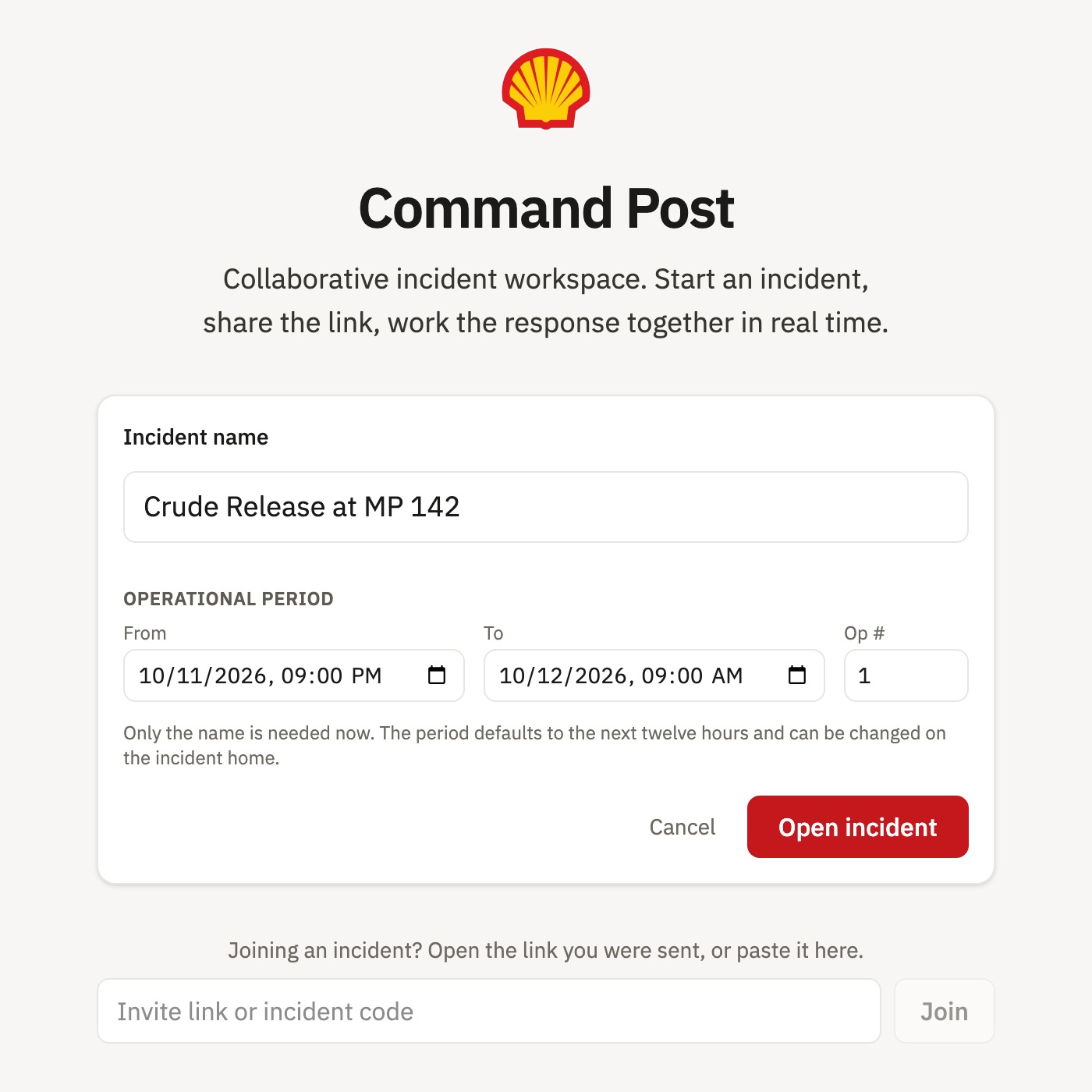
- Open the app and press Start an incident.
- Type the Incident name. The operational period defaults to the next twelve hours; set From, To and Op # now or later on the incident home.
- Press Open incident, enter Your name, pick Your ICS role, and press Open incident again.
- Press Share in the yellow bar. It copies the incident link; send it to the people who should join.
- When someone opens the link, they enter their name and role and press Ask to join. A card appears for the host: Approve, Deny, or Later to keep them waiting.
- Everyone waiting is also listed under the people stack in the bar, with Approve and Deny beside each name.
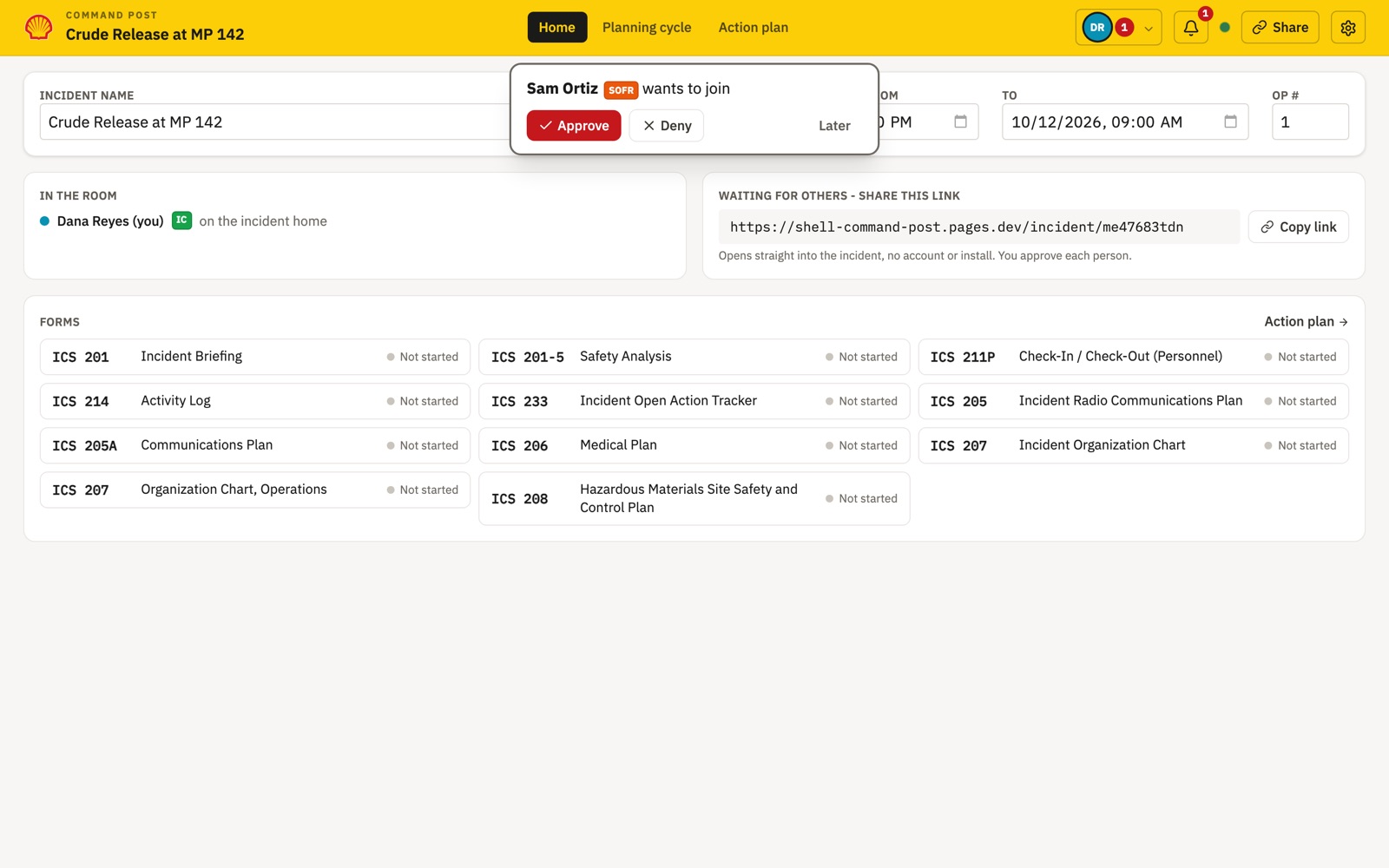
A person approved once goes straight back in from the same browser with Rejoin incident. A denied person sees Not admitted and cannot see anything in the incident. To join from the start page, paste the link or the incident code into Joining an incident? and press Join.
Find your way around
The yellow bar stays at the top of every screen. Its three tabs are the whole app.
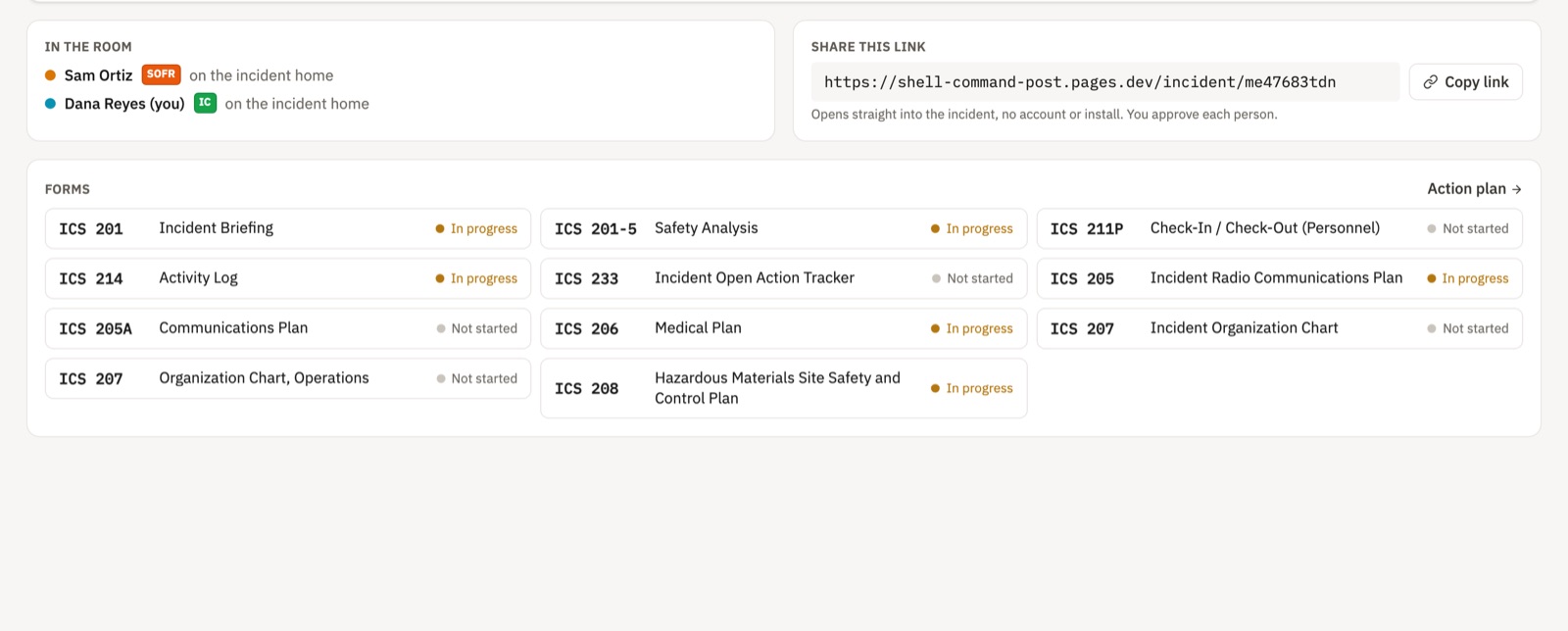
| Screen | What it holds |
|---|---|
| Home | The incident name and operational period, everyone in the room and the screen each is on, the share link, and every form with its status |
| Planning cycle | The simplified planning cycle: one ICS 201 sets the baseline, then Work, Assess, Adjust and Brief repeat, each turn producing a Situation Status Update and an Executive & Stakeholder Briefing, until objectives are met or the incident scales up |
| Action plan | The forms in the plan, their approval, the package order, the cover sheet and the build |
On the right of the bar:
- The people stack shows who is in the incident. Open it to see everyone, and anyone waiting to join.
- The bell keeps this browser's last 50 notices: who joined or left, requests to join. Unread ones are counted on the bell.
- The connection dot is green when work is being shared. It turns to Reconnecting or Connecting when it is not, and after five seconds without a connection a strip explains what to do.
- Share copies the incident link.
- Help opens this page in a new tab, at the part about the screen you are on.
- Settings holds your name, role and presence color, the text size, demo mode, and for the IC or PSC the incident's date and time format: US (09/19/2026 0545), ISO (2026-09-19 05:45) or 12-hour (09/19/2026 5:45 AM).
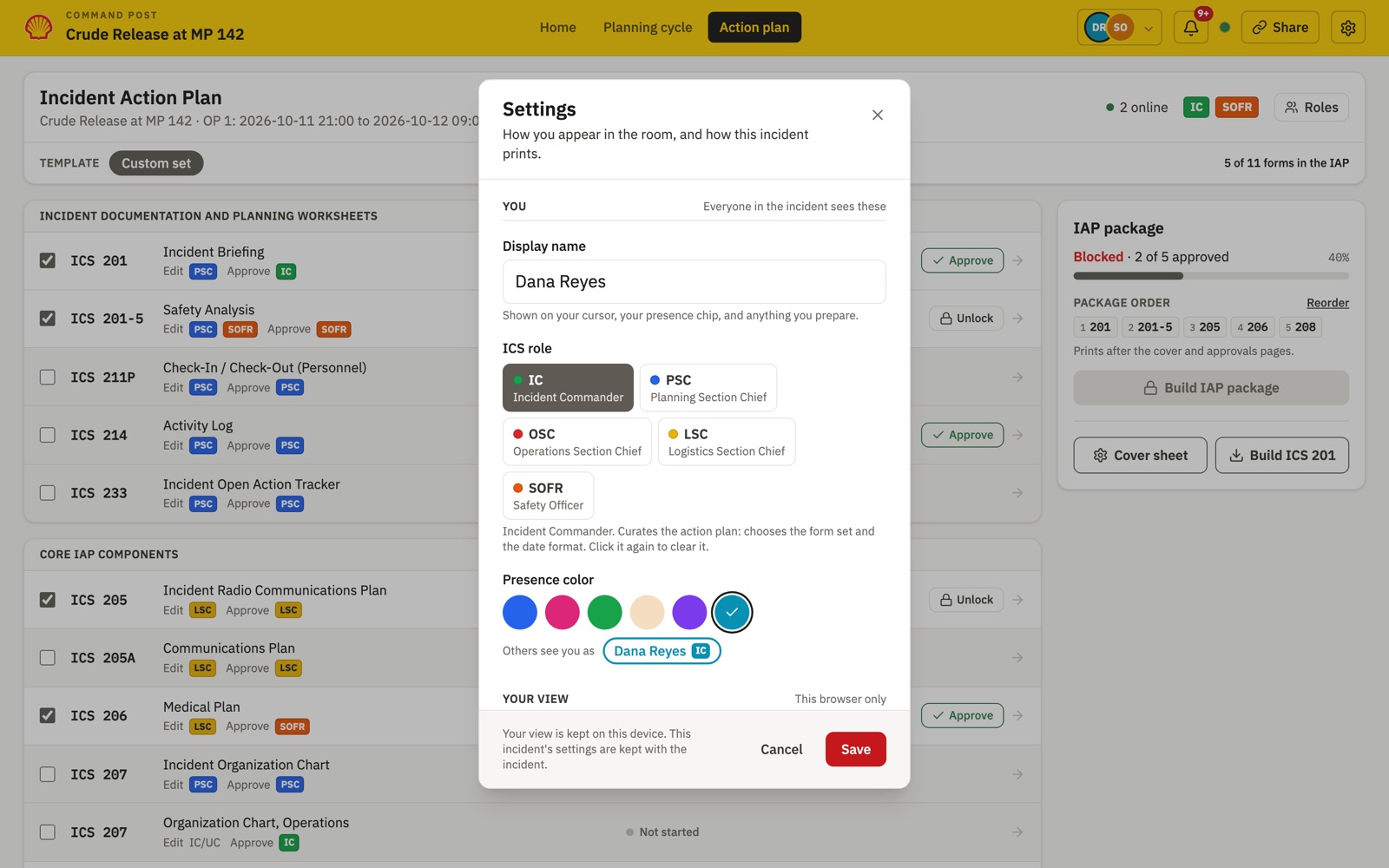
While others work, their cursors and pointers show on the form you share, in their presence color.
Fill in a form together
Open a form from Home or the Action plan, then type. Everyone in the incident sees each change as it is made, and two people can type in the same field without losing either's words. A name above a field shows who is in it.
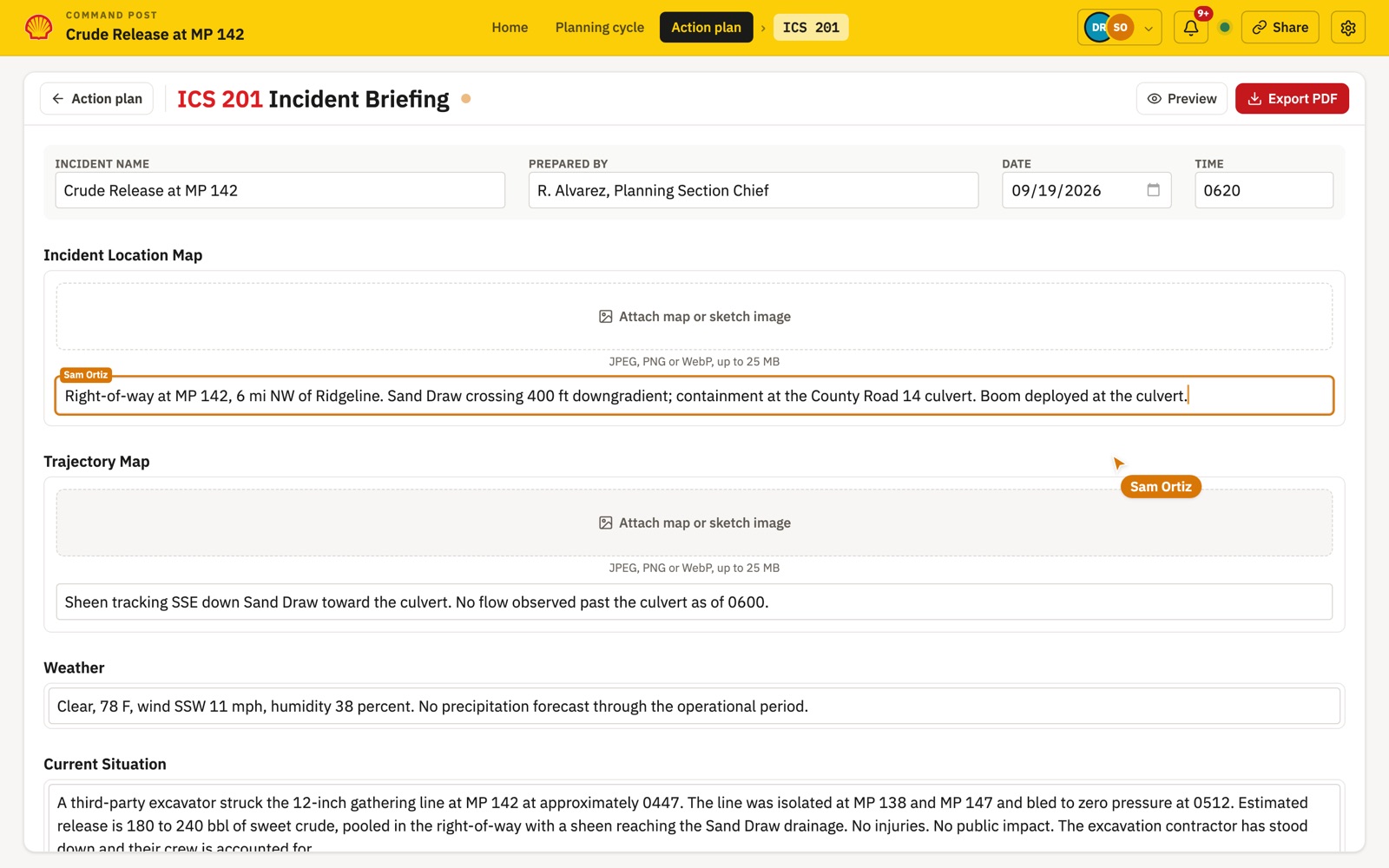
- Rows. Add a row with the add button under a table. Deleting a row offers Undo for a few seconds.
- Pictures. The ICS 201's map sections take a photo or map image up to 25 MB, with a caption. A bar shows the upload; the picture is stored with the incident.
- Times. Type a time the quick way: 0730, 730 and 07:30 are half past seven in the morning, 7 is seven o'clock, and 7:30 pm is half past seven in the evening. The cell shows it in the incident's time format. Dates use the browser's date picker.
- Preview shows the form's PDF beside the editor, updating as you type.
- Export PDF downloads the form on its own, in the incident's date format, with who prepared it and who approved it in the footer.
- Form settings. A gear beside Export PDF appears on forms that have settings. The ICS 233 sets its list of statuses there, and the ICS 207 picks its version: V1 Basic 8, V2 or V3. The Operations chart is a form of its own. The IC or PSC changes these, while the form is not approved.
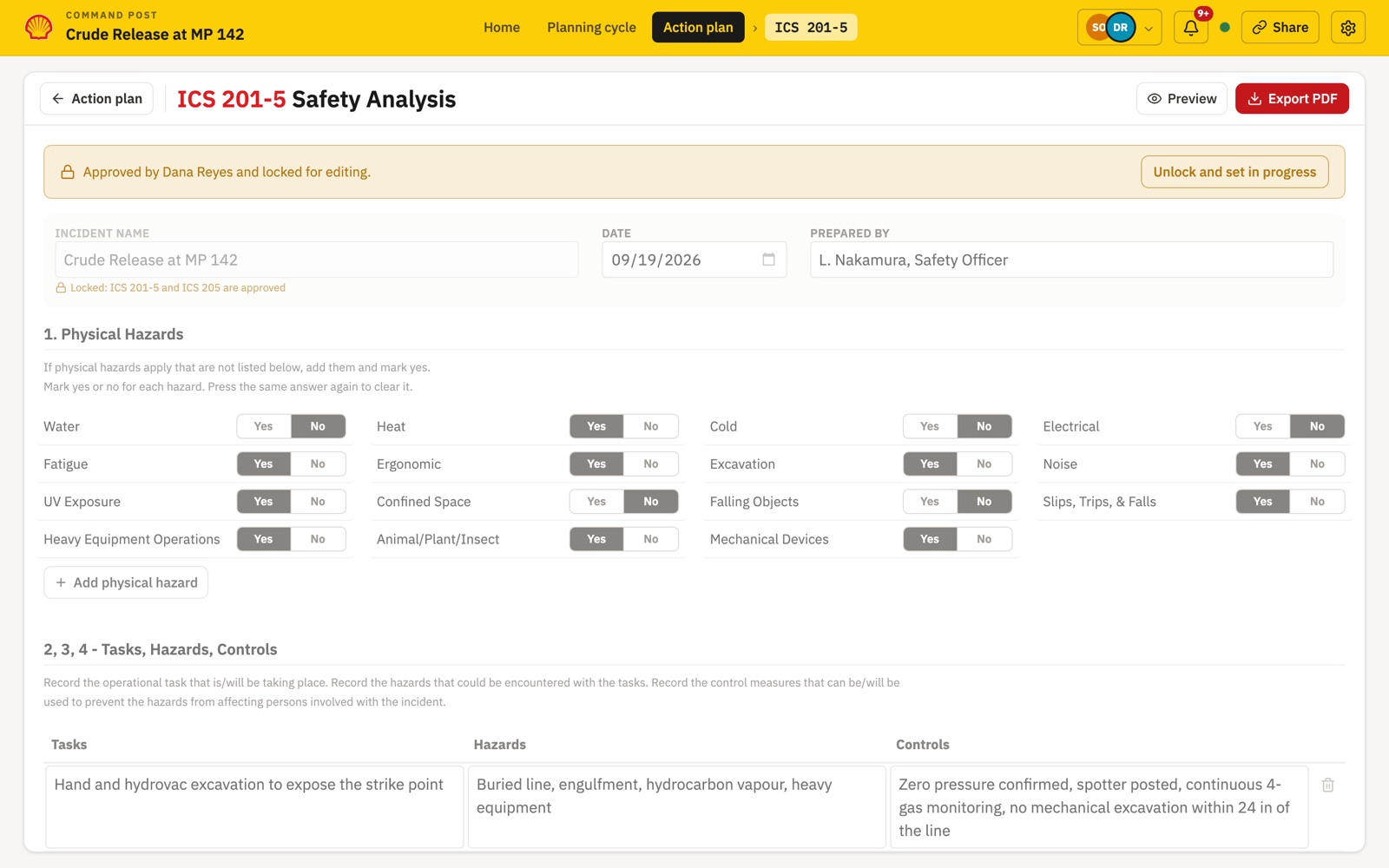
Once a form is approved it is locked: a notice at the top names who approved it, and the form takes no edits. Fields that print on an approved form also lock where they appear on other forms, such as the incident name, or the 201-5's product figures once the 208 is approved. Unlocking a form, from the Action plan or the notice on the form, sets it back in progress.
Assemble the action plan
A form goes into the action plan when it is ticked, and the package builds once every ticked form is approved.
Unlock sets an approved form back in progress.
Editing starts a form. Approving locks it, and only its approver or the IC can unlock it.
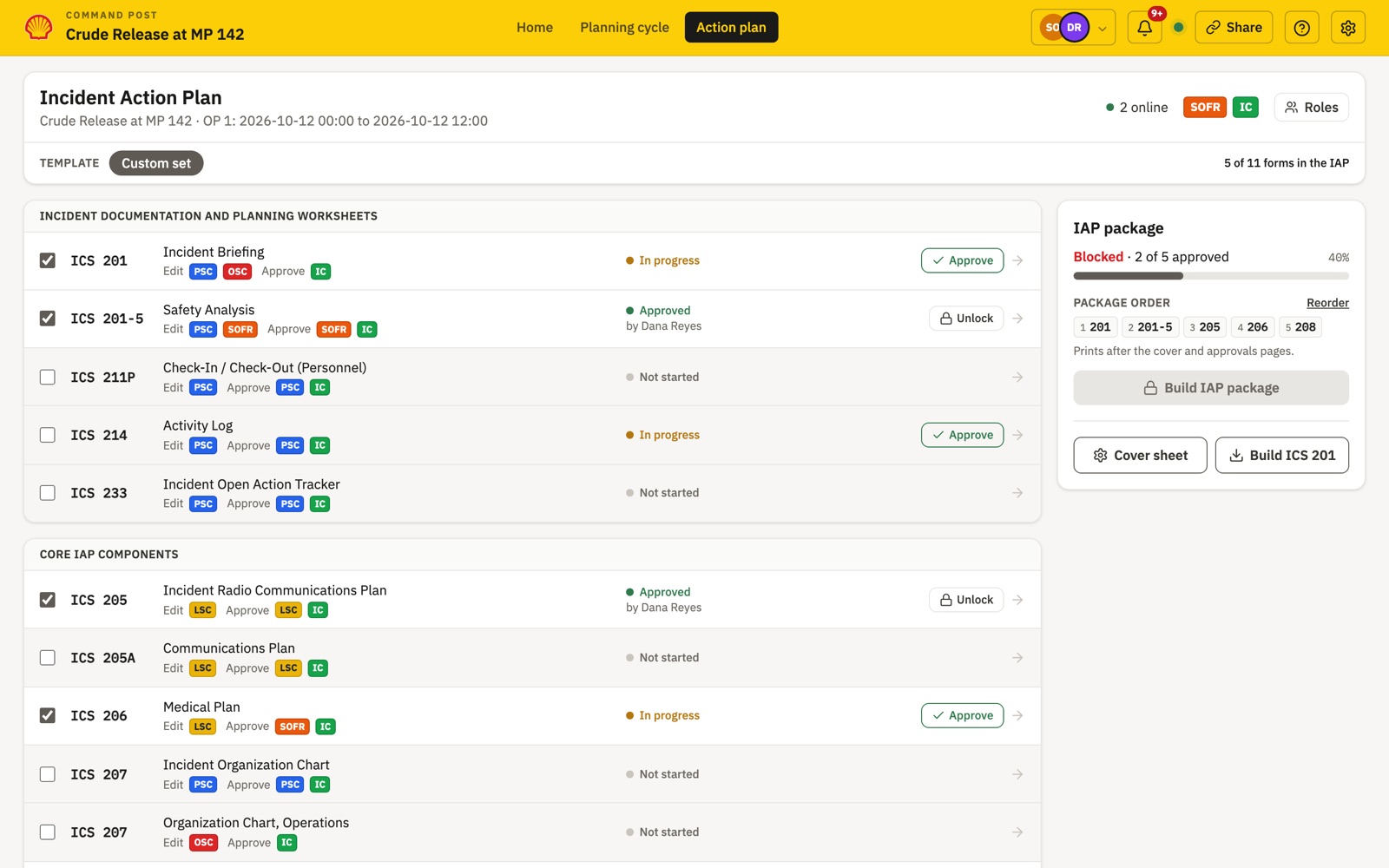
- Choose the forms. On the Action plan, the IC or PSC ticks the box on each form the plan needs. A form left out sits on a grey row.
- Fill them in. A form moves to In progress by itself when someone first edits it. Click a row to open its form.
- Approve. The form's approver, or the IC, presses Approve on its row. The row then shows who approved it, and the form's PDF footer names them.
- Set the order. The package order shows as a strip of form numbers. Reorder opens the list with arrows for the IC or PSC; Default order puts the ICS 201 and 201-5 first, then the rest by number.
- Fill the cover sheet. Press Cover sheet for the incident details and the three approvers: federal, state and the responsible party's Incident Commander. Signature lines stay blank for signing on paper.
- Build. When every ticked form is approved, the IC presses Build IAP package. It downloads one PDF: the cover, a forms and approvals page listing who approved each form and the page it starts on, then every form in order, numbered through.
Build ICS 201 makes the ICS 201 on its own, with any forms you pick added after it in package order. It needs no approvals.
Roles
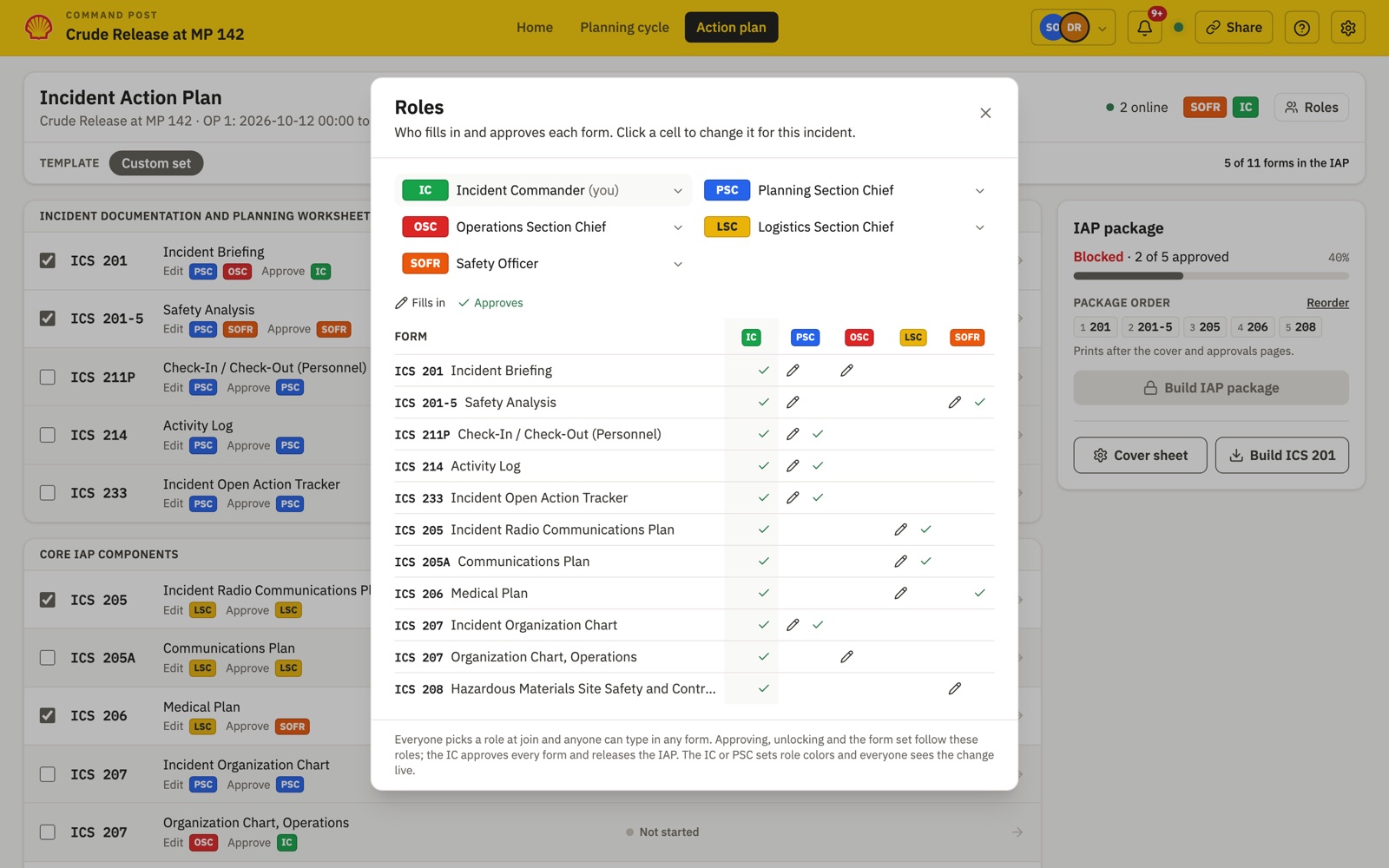
Anyone in the incident can type in any form that is not locked. A role decides who approves, unlocks and builds. Each person can pick a role when they join, and change it in Settings.
| Form | Filled in by | Approved by |
|---|---|---|
| ICS 201 Incident Briefing | PSC, OSC | IC |
| ICS 201-5 Safety Analysis | PSC, SOFR | SOFR or IC |
| ICS 211P Check-In / Check-Out (Personnel) | PSC | PSC or IC |
| ICS 214 Activity Log | PSC | PSC or IC |
| ICS 233 Incident Open Action Tracker | PSC | PSC or IC |
| ICS 205 Incident Radio Communications Plan | LSC | LSC or IC |
| ICS 205A Communications Plan | LSC | LSC or IC |
| ICS 206 Medical Plan | LSC | SOFR or IC |
| ICS 207 Incident Organization Chart | PSC | PSC or IC |
| ICS 207 Organization Chart, Operations | OSC | IC |
| ICS 208 Hazardous Materials Site Safety and Control Plan | SOFR | IC |
These are the defaults. The IC can change who fills in or approves any form for an incident: open Roles on the Action plan and click a cell. A changed cell is shaded, and Reset to defaults puts the table back. The IC always approves every form.
Beyond approving:
- IC and PSC choose the forms in the plan, set the package order, the incident's date format, form settings and role colors.
- IC approves every form, unlocks any approved form, changes the roles table, and builds the IAP package.
The Roles button on the Action plan shows the incident's table, and is where the IC or PSC sets each role's color for the incident. Everyone sees a change at once.
Administration
An incident is saved on the server as it is worked, and reopens from its link exactly as it was left.
| What | Where it is kept |
|---|---|
| Every form, the cover sheet, approvals, the package order and incident settings | The incident's record in the database, saved as people type |
| Pictures attached to forms | File storage beside the database, served only to people admitted to the incident |
| Who may enter the incident | The server, from the host's approvals |
| Your name, role, presence color, text size, demo mode and notices | This browser only |
| The host's right to admit people | The browser that started the incident |
- Your incidents on this browser are listed on the start page: the ones it started and the ones it joined. The list is per browser, so keep each incident's link for use elsewhere.
- Deleting an incident removes it for everyone: every form, picture and approval. Its host deletes it from the start page, typing the incident code to confirm. People in it are sent out and its link stops opening it. It cannot be undone.
- The admin page, at /admin, lists every incident in the system and deletes any of them. It opens with the admin key, which anyone holding can use, so it goes only to the people who run the system. Sign-in arrives with the production release, and administration moves to named accounts with it.
- Clearing a browser's site data forgets the name and role on it, and on the host's browser it removes the right to admit new people. People already admitted keep their access.
- If the database cannot be reached, the incident keeps working and saves to the server's own fallback storage instead. The switch is logged for the administrator.
- Demo mode is a switch in Settings, for training and demonstrations. It adds Fill and Clear to each form and the cover sheet, which load or remove a sample incident. While it is on, the bar shows Demo mode beside the incident name, and every PDF this browser exports or previews has DEMO across each page. It is per browser; leave it off for a real response.
- With the production release signing in replaces the shared link: a link becomes an invitation into the incident's list of members.
When something goes wrong
| What you see | What it means | What to do |
|---|---|---|
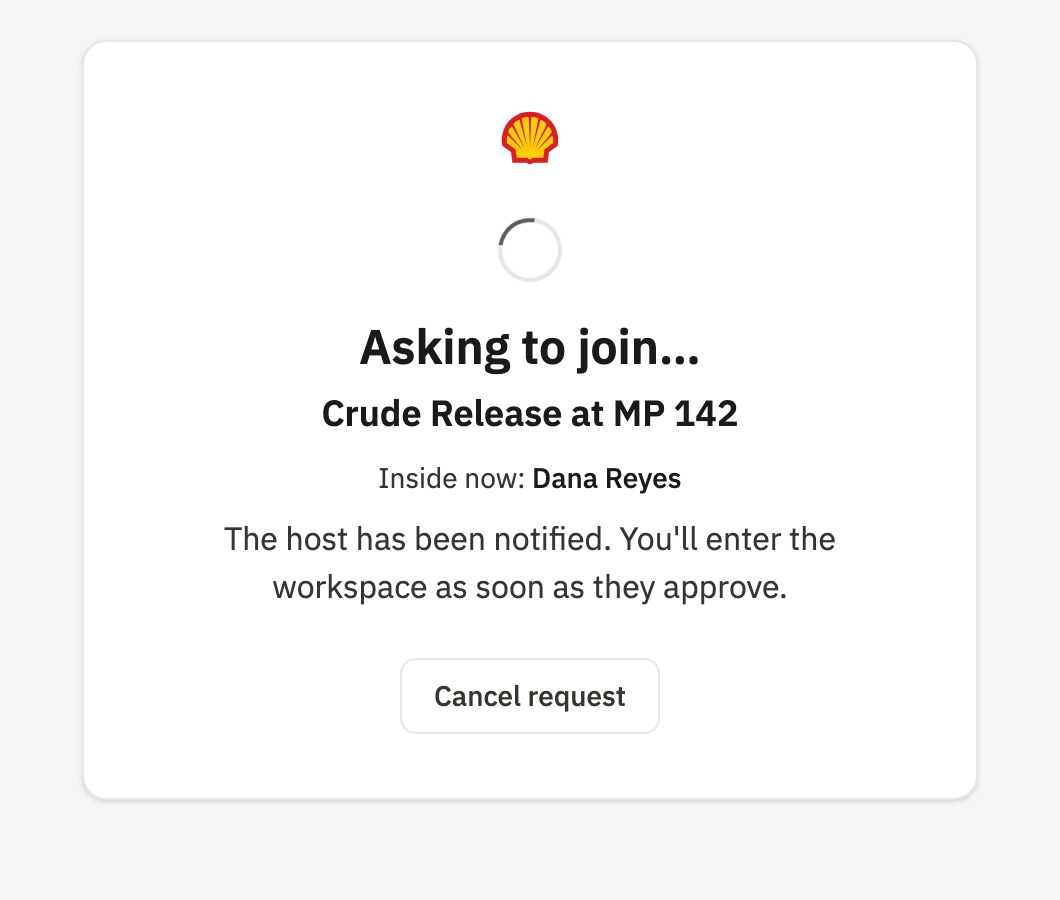
| Asking to join… and nothing happens | The host has not approved yet, or does not have the incident open | Ask the host to open the incident; the request reaches them when they do. Cancel request goes back to the start |
| Not admitted | The host declined | Ask the host directly |
| Incident deleted | The incident was deleted by its host or an administrator | Nothing to recover; start a new incident |
| Connecting… does not finish | The link is wrong, or the network cannot reach the app | Check the link. Back to start leaves the screen |
| Reconnecting in the bar, or a Not connected strip | The connection dropped | Keep the tab open and do not reload. Changes are sent when it comes back |
| A form says it is approved and locked | It is approved and locked | Its approver or the IC presses Unlock |
| One field will not take typing on an open form | It also prints on an approved form | The reason shows on the field. Unlock the approved form to change it |
| The include boxes are grey, and there is Show titles where Reorder should be | Only the IC or PSC curate the plan | Check your role in Settings |
| Build IAP package is grey | A ticked form is not approved yet, or you are not the IC | Approve the remaining forms; the IC builds |
| A picture is refused | It is over 25 MB, or over 10 MB once the app has prepared it | Use a smaller or lower-resolution image |
| The incident link is lost | The app keeps no list of incidents | Anyone inside presses Share to copy it again |
| The host's browser is gone | No one else can admit new people | The people already admitted keep working. Signing in, with the production release, removes this limit |